
 How-to
How to Build a Secure Remote Work Setup for Employees
Last Updated: November 4, 2026
Quick Summary
A secure remote work setup combines four layers: hardened devices, multi-factor authentication, VPN-protected connectivity, and encrypted data with granular access control. Roll out MFA first, since a stolen password alone then stops working. Add a signed remote work policy and quarterly access reviews to keep the setup intact.
- Remove local admin rights and turn on full-disk encryption before any device leaves the office.
- Authenticator apps and hardware keys beat SMS codes, which can be intercepted.
- Start each Conditional Access policy in report-only mode for a week before enforcing it.
- Run a quarterly access review and remove anything unused for 90 days.
- Require employees to report a lost device or suspected breach within one hour.
Table of Contents
- What a Secure Remote Work Setup Must Cover
- Step 1: Harden Every Remote Endpoint Before It Leaves the Office
- Step 2: Roll Out Multi-Factor Authentication for Remote Access
- Step 3: Lock Down Connectivity With a VPN and Secure Wi-Fi
- Step 4: Apply Granular Access Control and Zero Trust for SMBs
- Your Remote Work Cybersecurity Checklist
- Step 5: Write a Secure Remote Work Policy Template Staff Can Follow
- Closing the Gaps: Shadow IT, Physical Security, and Compliance
- Frequently Asked Questions
What a Secure Remote Work Setup Must Cover
A secure remote work setup combines device controls, identity checks, network protection, and data safeguards so employees can work outside the office without exposing business systems. The goal: if a laptop is lost or a password stolen, the damage stays contained.
Most remote work breaches start with a missing patch, a reused password, or an untracked personal device, not a sophisticated hacker.
The Four Layers: Device, Identity, Network, Data
Think of a secure remote work setup as four layers. Each one backs up the others:
- Device: the laptop or phone itself, locked down and updated
- Identity: proof that the person logging in is who they claim to be
- Network: a protected path between the employee and your systems
Skip one layer and the others weaken. A hardened laptop still fails if the password is "Summer2026."
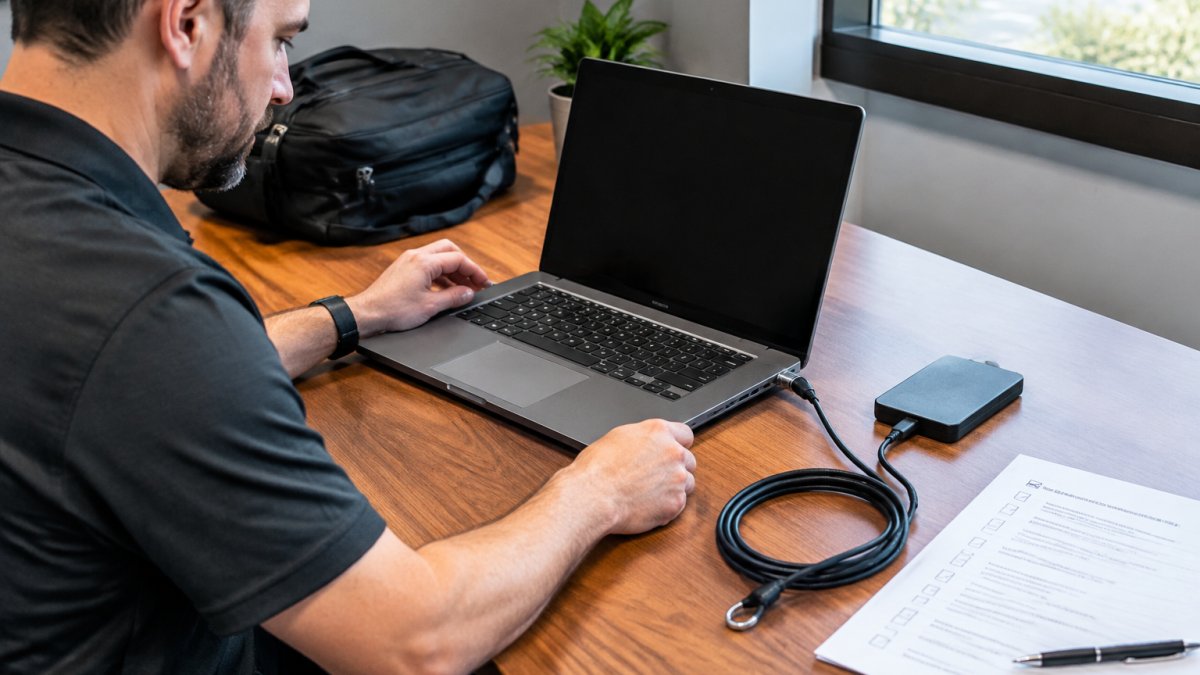
Step 1: Harden Every Remote Endpoint Before It Leaves the Office
Endpoint hardening means locking down each device before it ever connects from a home office.
Here is the order we follow:
- Remove local admin rights from the employee account
- Turn on full-disk encryption
- Enable automatic system updates
- Install endpoint protection and DNS filtering
- Disable unused ports and Bluetooth when not needed
- Record the device serial number and assign an owner
That last step matters: you cannot protect a device you cannot name.
Full-Disk Encryption and Patch Management
Full-disk encryption scrambles everything on the drive, so a stolen laptop is a hardware loss, not a data breach. Turn it on for every device, including phones.
Patch management is the other half. Unpatched software is one of the easiest doors into a small business network, as the Cybersecurity and Infrastructure Security Agency's guidance on patching explains.
Step 2: Roll Out Multi-Factor Authentication for Remote Access
Multi-factor authentication for remote access requires a second proof of identity beyond a password, such as a code or fingerprint. It is the single highest-value control for a distributed workforce, because a stolen password alone stops working.
Roll it out in this order:
- Start with email and Microsoft 365 accounts
- Add remote access tools and your VPN
- Then cover finance and payroll systems
- Finish with everything else
Choosing Authentication Factors That Staff Will Actually Use
The best factor is the one employees will not disable out of frustration. Authenticator apps and hardware keys beat SMS codes, which can be intercepted. Avoid forcing a factor that requires a personal phone unless you have a policy for it.
We set up Microsoft 365 identity and security controls for offices that need help here: Work Smarter with Microsoft 365.
Step 3: Lock Down Connectivity With a VPN and Secure Wi-Fi
A VPN creates an encrypted tunnel between the employee's device and your office network. Use one for any access to file servers or internal systems. Split tunneling, where only work traffic goes through the tunnel, keeps speeds reasonable.
Home Wi-Fi needs attention too. Give staff a short checklist:
- Change the router's default admin password
- Use WPA2 or WPA3 encryption
- Rename the network so it does not reveal the router model
If firewalls and secure Wi-Fi setup feel like a lot, reliable business networks can be discussed with our team.
Step 4: Apply Granular Access Control and Zero Trust for SMBs
Granular access control means each employee reaches only the files and systems their job requires. Zero Trust goes further: no device or person is trusted by default, even inside the office (Zero Trust Networks | NIST).
For a small business, Zero Trust does not require an enterprise budget or a rip-and-replace project. It requires four concrete moves, done in order.
Move 1: Put Every Identity Behind a Single Identity Provider
Zero Trust starts with an authoritative identity source. For most small businesses that means Microsoft Entra ID (formerly Azure AD) bundled with Microsoft 365, or Google Workspace identity if the company is Google-based.
Federate SaaS apps to that identity provider using SAML or OIDC rather than letting each app hold its own username and password. Every app with its own credentials is a separate offboarding task and a separate place for a reused password to leak.
Move 2: Enforce Conditional Access, Not Just MFA
MFA alone is a gate at login. Conditional Access decides whether a login is allowed based on context: device compliance state, location, risk score, and application sensitivity.
A practical starter set of policies for an SMB:
- Require MFA for all users, with a named emergency-access account excluded and monitored
- Block legacy authentication protocols, which bypass MFA entirely (Block legacy authentication with Conditional Access - Microsoft Entra ID)
- Require a compliant or hybrid-joined device to reach email and file storage
Start each policy in report-only mode for a week to see who it would have blocked before enforcing it. Enforcing blind is how IT teams lock out the CEO on a Saturday.
Move 3: Replace Flat VPN Access With Least-Privilege Tunnels
A traditional VPN often drops a remote device onto the flat office network, where it can reach file servers, printers, and management interfaces it has no business touching. Zero Trust replaces that with per-application access. SMB-budget options include:
- ZTNA services such as Cloudflare Access, Tailscale, or Twingate, which publish individual internal apps rather than the whole subnet
- VPN with firewall segmentation, where the VPN pool is placed on its own VLAN and firewall rules allow only specific destinations
- Identity-aware proxies in front of web-based internal tools
The trade-off is real: per-app tunnels take more setup than a single VPN concentrator, and some legacy client-server applications do not tolerate it. Most practitioners find the effort pays back the first time a stolen laptop cannot reach the accounting server.
Move 4: Review Entitlements on a Schedule, Not on Vibes
Role-based access only works if someone trims it. Build a quarterly access review where each manager confirms their team's entitlements, and remove anything unused for 90 days. Watch shared accounts, which defeat both accountability and MFA.
Watch out: granting access by department instead of by role is the most common way small businesses quietly recreate the flat network inside their cloud apps.
What This Looks Like in Practice
Generic checklists hand you a VPN and call it done. Access control is what limits the blast radius when something does go wrong.
Your Remote Work Cybersecurity Checklist
Use this remote work cybersecurity checklist before any employee takes a device home. It doubles as a quarterly audit.
| Check | What Good Looks Like | How Often |
|---|---|---|
| Disk encryption | On for every laptop and phone | Once, then verify quarterly |
| Patch management | Updates install and confirm automatically | Weekly check |
| MFA | On for email, VPN, finance systems | Once, then review quarterly |
| VPN use | Required for internal systems | Every session |
| Access rights | Role-based, reviewed and trimmed | Quarterly |
| Backups | Tested restore, not just a backup job | Monthly test |
| Policy signed | Employee has read and signed | At hire, then yearly |
For a wider set of controls, compare this list against our small business cybersecurity checklist.
Step 5: Write a Secure Remote Work Policy Template Staff Can Follow
A secure remote work policy template turns good intentions into rules people can follow. Keep it to two pages.
Here is a starting structure you can adapt:
Remote Work Security Policy
- Approved devices: Only company-issued or approved devices may access business systems.
- Login rules: MFA is required on all accounts. Passwords must be unique and stored in the company password manager.
- Network rules: Connect to internal systems only through the company VPN. No public Wi-Fi without it.
- Data handling: Store files only in approved cloud locations. No personal email or USB drives for business data.
- Physical care: Lock the screen when stepping away. Never leave a device visible in a car.
- Reporting: Report a lost device, odd email, or suspected breach within one hour.
- Shadow IT: Do not sign up for new software without IT approval.
Have each employee sign it. Review it once a year, or whenever a major tool changes.
Closing the Gaps: Shadow IT, Physical Security, and Compliance
Three gaps sink otherwise solid remote setups: tools employees adopt on their own, hardware that walks away, and regulatory obligations nobody mapped to the remote environment. Each needs a specific control, not a general reminder.
Shadow IT: Find It Before It Finds You
Shadow IT is any app or service employees use without approval. It is the quiet gap in most remote setups: staff adopt free tools to solve problems and nobody tracks the data going into them.
Concrete ways to surface it:
- Review SSO logs and email receipts. Most shadow SaaS shows up as a "welcome to" email or an OAuth consent grant. Pull a monthly report of third-party apps with access to Microsoft 365 or Google Workspace and revoke anything unrecognized.
- Check the finance card statement. Recurring charges to unfamiliar SaaS vendors are the clearest shadow IT signal a small business has.
- Ask in one-on-ones, without punishment. The goal is a request process, not a confession. Stand up a simple intake form and commit to a response time so people stop going around you.
A workable policy line: employees may request any tool, IT responds within two business days, and unapproved tools handling company data are disabled. That converts shadow IT from a hidden risk into a queue.
Physical Security of Remote Hardware
A laptop left on a café table or in a hot car is a real risk, and it is the gap most remote guides skip. Physical controls are cheap and mostly procedural:
- Cable locks for anyone working regularly from a shared or public space
- Privacy screens for staff who handle client data, health information, or financial records in transit
- Screen lock on a short timer, 5 minutes or less, enforced by device policy, not left to habit
Watch out: "never leave a device visible in a car" is good advice, but the enforceable version is a written rule that company laptops do not stay in vehicles overnight, and a remote-wipe capability you have actually tested.
Compliance: Map the Rule to the Remote Control
For health data under HIPAA, the Security Rule's technical safeguards are a useful reference when mapping remote controls.
Payment card data is governed by PCI DSS, whose current requirements should be confirmed with the official standard and a qualified assessor.
Watch out: assuming a cloud provider's default settings meet your compliance obligations is a common and costly mistake.
When you are ready to close the remaining gaps, get my free IT checkup. Our cybersecurity support can be discussed with our team, with no long-term contracts.
Frequently Asked Questions
What are the essential components of a secure remote work setup?
Four layers cover the essentials: the device (full-disk encryption, patch management, malware prevention), identity (multi-factor authentication and least-privilege access), the network (a VPN or secure tunnel plus hardened home Wi-Fi with DNS filtering), and the data (backups and encryption in transit and at rest). Add a written policy and awareness training so employees know what to do when something looks wrong. Small businesses that skip any one layer, usually identity or patching, carry most of the risk.
How would you secure remote access for employees without slowing them down?
Start with multi-factor authentication for remote access, then put a VPN or zero-trust access gateway in front of internal systems so traffic travels through an encrypted tunnel. Use single sign-on so staff authenticate once, and set conditional rules that only demand extra verification from unfamiliar devices or locations. The goal is friction in the right places: a stolen password alone should never be enough, but a normal workday on a known laptop should not require five logins.
What are the biggest security risks for remote work setups?
Phishing and credential theft top the list, followed by unpatched devices, personal devices used for work without device hardening, weak home Wi-Fi, and shadow IT, where staff sign up for cloud tools outside IT's visibility. Physical risks matter too: a laptop left in a car or a shared apartment is a data breach waiting to happen. A secure remote work setup addresses each with phishing protection, patch management, approved-device rules, and a clear policy on what can be installed.
How often should remote work security policies be reviewed?
Review the policy at least once a year, and again whenever something material changes: a new cloud platform, a staffing shift to hybrid, a ransomware incident in your industry, or updated compliance standards. Quarterly check-ins work well for growing teams. The review should confirm MFA coverage, patch compliance, backup restore tests, and that employees still understand the rules. A policy nobody has read since onboarding protects nothing.