
 How-to
How to Improve Office Network Speed and Stability
Last Updated: October 30, 2026
Quick Summary
To improve office network speed and stability, measure speed, latency, jitter, and packet loss first, then work through four layers in order: ISP, Wi-Fi, local network, and devices. Fix the physical layer before buying hardware, since a new router won't fix a failing switch, bad cable run, or saturated uplink.
- Run speed tests at 9 a.m., 1 p.m., and 4 p.m. to catch peak-hour dips.
- Use wired Ethernet for desktops, printers, and NAS units that stay put.
- Update router, switch, and access point firmware quarterly and restart modems monthly after hours.
- Set QoS so voice and video conferencing get highest priority during congestion.
- Split guest traffic onto its own SSID and VLAN with capped bandwidth.
Table of Contents
- Start With a Baseline: Test Your Office Network Speed and Stability
- Troubleshooting Slow Office Internet: Isolate the Problem Before You Buy Hardware
- Fix the Physical Layer: Ethernet, Router Placement, and Wi-Fi Coverage
- Update Firmware and Restart Equipment to Clear Temporary Issues
- Reduce Bandwidth Competition and Limit Unnecessary Connected Devices
- Network Performance Optimization Best Practices for Business Offices
- How Managed IT Services for Network Stability Prevent Repeat Problems
- Get Your Free IT Checkup and Put a Stability Plan in Place
- Frequently Asked Questions
Start With a Baseline: Test Your Office Network Speed and Stability
Slow internet in the office usually isn't one problem. It's a mix of speed, stability, and how your network handles traffic. If you want a faster, more reliable office network, you need to measure what's actually happening before you change anything. Guessing costs more than testing.
Speed is how much data moves per second. Stability is whether that speed holds steady all day. A connection that hits high download numbers but drops during video calls is unstable, and that's the problem most offices actually have.
Speed vs. Stability: Why Both Matter
A speed test tells you your download and upload speed at one moment. It says nothing about latency, jitter, or packet loss. Those three metrics decide whether calls freeze and cloud apps lag. Run tests at 9 a.m., 1 p.m., and 4 p.m. to catch peak-hour dips.
The Four-Layer Diagnostic Workflow
Work through four layers in order:
- Internet service provider (ISP): test directly at the modem
- Wi-Fi: check signal strength and channel congestion
- Local network (LAN): inspect switches, cabling, and access points
- Devices: confirm the problem isn't one laptop or app
If a wired test at the modem is fast and stable, your ISP is fine. The issue lives inside your building.
Troubleshooting Slow Office Internet: Isolate the Problem Before You Buy Hardware
The biggest mistake we see is buying new equipment before anyone knows what's broken. A new router won't fix a failing switch or a saturated upload link. Isolate first, spend second.
Ask three questions:
- Does the problem affect one device or everyone?
- Does it happen only on Wi-Fi, or on wired connections too?
- Does it follow a schedule, like every afternoon?
One slow laptop points to the device. Every device slowing at 2 p.m. points to bandwidth congestion or an ISP bottleneck. Wi-Fi-only problems point to coverage or interference.
FCC Consumer Guide on broadband speed explains how to test your connection properly and what the results mean. Match that method to your baseline tests so the numbers stay comparable.
Fix the Physical Layer: Ethernet, Router Placement, and Wi-Fi Coverage
Physical fixes deliver the fastest wins, but only if you treat them as engineering decisions rather than generic tips. Start with cable, placement, and coverage before touching settings, and measure the result each time so you know which change actually helped.
Wired Ethernet: Where It Still Wins
- Use wired Ethernet for desktops, printers, NAS units, and anything that stays put. A wired link avoids shared-air contention and typically delivers lower latency and jitter than Wi-Fi.
- Match cable to speed. If you are paying for multi-gig internet, an old, low-category cable run can be the bottleneck.
- Certify new runs. A cable that links at 1 Gbps can still have high error rates from a bad termination. Ask for certification results on new cabling, especially runs that were never tested.
- Avoid daisy-chained unmanaged switches. Loops and broadcast storms look exactly like "slow internet" and can take down a floor. Use managed switches with spanning tree enabled where you have more than one switch.
Router and Access Point Placement
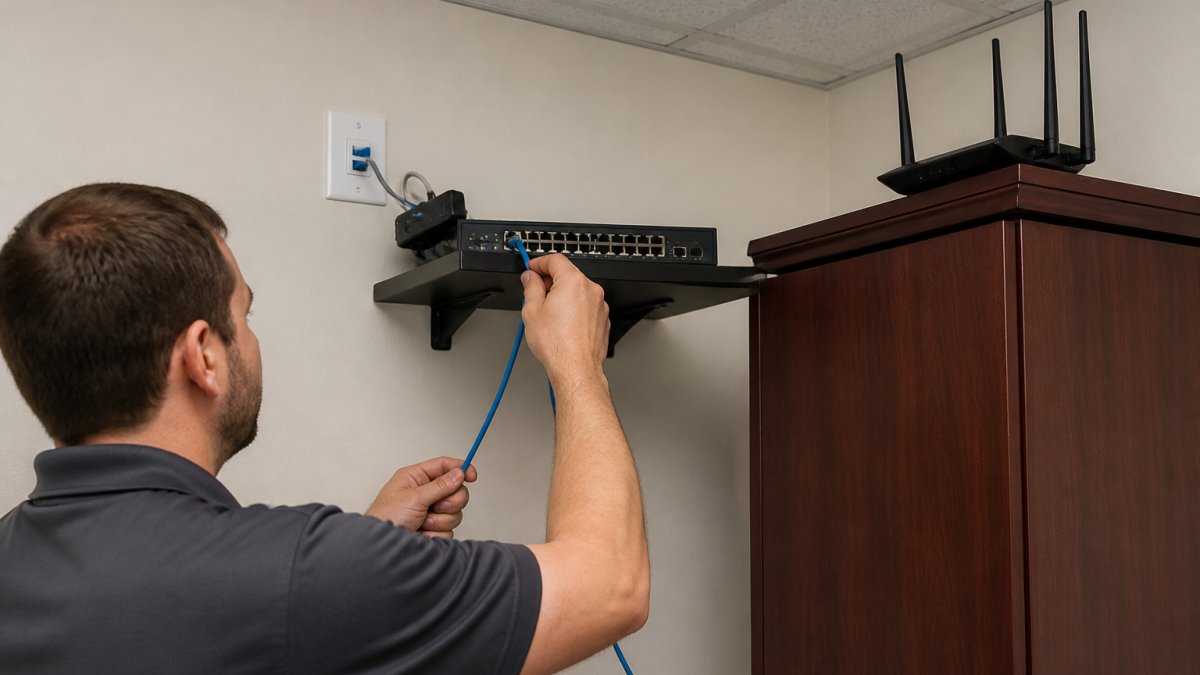
- Place the router or core AP high and central, away from metal cabinets, concrete walls, and microwaves. Wi-Fi is a shared medium; every wall it crosses weakens the signal.
- Add access points instead of relying on one router for a whole floor. One AP covering an open office is a coverage claim, not a capacity plan. Verify AP capacity with a site survey before settling on a layout.
- Separate 2.4 GHz and 5 GHz roles. Put IoT and legacy devices on 2.4 GHz; put laptops, phones, and video endpoints on 5 GHz (or 6 GHz where available) for cleaner channels and higher throughput.
Channel Planning and Coverage Checks
- Do a site survey, not a guess. Walk the floor with a Wi-Fi analyzer and record signal strength (RSSI) and channel overlap. Measure signal strength in work areas and address weak spots before they affect calls and video.
- Use non-overlapping channels. On 2.4 GHz, stick to 1, 6, and 11. On 5 GHz, prefer wider channels (40/80 MHz) only where APs are spaced far enough apart to avoid co-channel interference.
- Lower transmit power on dense APs. Turning power down can improve roaming and reduce interference in open offices; turning it up often makes things worse.
A new router won't fix a failing switch, a bad cable run, or a saturated uplink. Fix the physical layer and verify with a wired test at the modem before you buy hardware.
For offices ready to fix coverage and hardware properly, reliable networks for a stronger business shows how we design and troubleshoot business Wi-Fi and firewalls.
Update Firmware and Restart Equipment to Clear Temporary Issues
Firmware updates fix bugs, close security holes, and sometimes restore performance. Restarting clears memory leaks and stuck sessions. Do both on a schedule, not just when something breaks.
- Update router, switch, and access point firmware quarterly
- Restart modems and routers monthly, after hours
- Check manufacturer notices for known stability bugs
- Log every restart so patterns become visible
A common mistake is updating firmware mid-day with no backup of the configuration. Export settings first.
Reduce Bandwidth Competition and Limit Unnecessary Connected Devices
Bandwidth is finite, and most office slowdowns are contention problems, not capacity problems. The goal is to protect the traffic that runs the business, voice, video, cloud apps, and cap everything else. Do this with configuration and measurement, not just requests to staff.
Identify What Is Actually Consuming Bandwidth
- Check per-device and per-app usage on your router or firewall before changing rules. Cloud backups, OS updates, video streaming, and large file syncs are the usual suspects.
- Look for chatty devices. Unmanaged IoT devices, personal hotspots, and guest phones can quietly consume airtime and DHCP leases.
- Remove unused devices from the network and disable switch ports that are not in use.
QoS: Prioritize by Traffic Class, Not by Hope
Set QoS rules so real-time traffic wins during congestion:
- Highest priority: voice and video conferencing (RTP/SIP, Teams, Zoom)
- High priority: business-critical cloud apps and remote desktop
- Normal: web browsing and email
- Low priority / rate-limited: backups, OS updates, personal streaming
A common pattern is to reserve a slice of upload bandwidth for real-time traffic, because upload is usually the first thing to saturate during video calls. Test after each change: run a speed test and a call-quality check at peak time to confirm the rule is doing what you intended.
VLANs and Guest Networks
- Split guest traffic onto its own network (SSID plus VLAN) so guest devices cannot reach staff resources and cannot compete for priority.
- Separate staff, voice, and IoT traffic where your switch and firewall support it. VLAN separation reduces broadcast noise and makes QoS and security rules easier to apply.
- Keep guest bandwidth capped so a visitor streaming video does not degrade calls in the next room.
Schedule the Heavy Lifting
- Schedule backups and large transfers for after hours. A nightly backup that overlaps with the morning call block is a self-inflicted outage.
- Stagger OS and app updates across devices instead of letting them all pull at once.
- Log changes so you can tie a slowdown to a new rule, device, or schedule.
This is where network performance optimization best practices pay off: prioritize the traffic that runs your business, cap the rest, and verify with latency, jitter, and packet-loss checks, not just a single speed test.
Network Performance Optimization Best Practices for Business Offices
Configuration separates a network that works from one that works under pressure. These practices matter most:
| Practice | What It Fixes | Effort |
|---|---|---|
| QoS rules | Call and app lag during peak use | Medium |
| VLAN separation | Guest and staff traffic mixing | Medium |
| Channel planning | Wi-Fi interference between access points | Medium |
| Access point capacity planning | Dead zones and overloaded APs | High |
| Uptime and latency monitoring | Repeat problems going unnoticed | Medium |
Monitor latency, jitter, packet loss, and uptime weekly. A network that looks fine on a speed test can still drop packets badly. For a deeper walkthrough, see reliable network management for small businesses.
How Managed IT Services for Network Stability Prevent Repeat Problems
Repeat outages are a monitoring problem, not a hardware problem. If the same issue returns every month, nobody is watching the right metrics.
Managed IT services for network stability generally means proactive monitoring, scheduled maintenance, and timely response when something fails. Instead of calling a technician after the network dies, you catch the warning signs first. Weighing ongoing monitoring against break-fix support? Our proactive vs reactive IT support guide lays out the trade-offs. For offices that want that coverage handled, your outsourced IT department explains how proactive monitoring and vendor coordination work.
Get Your Free IT Checkup and Put a Stability Plan in Place
Most offices don't need a bigger internet pipe. They need someone to measure the right things and fix the weak layer first.
LEAP TEK Solutions provides proactive support and monitoring, reliable network design, and strategic planning without long-term contracts. We identify your biggest technology risks and build a plan around how your business actually works. Request your free IT checkup and get a clear stability plan in place.
Frequently Asked Questions
What are the most common causes of slow office network speeds?
The usual culprits are an outdated router or access point, poor Wi-Fi placement, too many connected devices competing for bandwidth, and bandwidth-heavy applications running during work hours. Start by running a speed test on a wired connection to see what your internet service provider actually delivers. If wired speed is fine but Wi-Fi crawls, the problem is inside your office network, not your provider. Firmware that has not been updated in years and switches running at older speeds also cap performance.
What is the difference between network speed and network stability?
Speed is how much data moves per second, measured as download and upload speed. Stability is whether that performance holds steady, measured by latency, jitter, packet loss, and uptime. A connection can test fast and still drop video calls if latency spikes or packets are lost. For office work, stability matters more: a steady 200 Mbps connection beats a 1 Gbps line that drops every afternoon. Monitor both to get a full picture of office network health.
How can managed IT services for network stability help my business?
Managed IT services for network stability put monitoring and maintenance on a schedule instead of waiting for a breakdown. That typically means regular firmware updates, access-point capacity checks, QoS rules that protect video calls and cloud apps, and alerts when latency or packet loss crosses a threshold. For small businesses without in-house IT staff, this catches problems like failing hardware or rogue devices before staff notice slowdowns and lost productivity.
When should I contact my internet service provider or replace my equipment?
Contact your internet service provider when a wired speed test directly at the modem shows speeds well below your plan, or when outages and packet loss persist across multiple devices and times of day. Replace equipment when it no longer receives firmware updates, lacks capacity for your device count, or cannot handle your plan's speed. Document test results before calling so the provider cannot dismiss the issue as an internal Wi-Fi problem.
Your network will keep degrading quietly until someone measures it. Get started with LEAP TEK Solutions and turn slow, unstable office internet into a connection your team stops thinking about.